Docker MCP Server
The Testkube MCP Server is available on DockerHub and can be used in IDEs via stdio and remotely over shttp in local agent scenarios.
Running the Container
Prerequisites
The MCP Server Container is always started with TK_MCP_ENV_MODE=true and requires an API-Token for authentication since it has no Testkube Context configured.
Either set required environment variables (or pass them directly when starting the container):
export TK_ACCESS_TOKEN="your_testkube_access_token"
export TK_ORG_ID="your_organization_id"
export TK_ENV_ID="your_environment_id"
Required Environment Variables
TK_ACCESS_TOKEN- Testkube API access tokenTK_ORG_ID- Testkube organization IDTK_ENV_ID- Testkube environment ID
Optional Environment Variables
TK_CONTROL_PLANE_URL- Testkube API URL (default: https://api.testkube.io), override this for on-prem deployments.TK_DASHBOARD_URL- Testkube dashboard URL (auto-derived from control plane URL).TK_DEBUG- Enable debug output (default: false).
MCP Client Configuration
The Testkube Docker MCP Server can run using both stdio and shttp transports - Read More
VSCode / Cursor
Using stdio transport:
{
  "servers": {
    "testkube": {
      "command": "docker",
      "args": [
        "run", "--rm", "-i",
        "-e", "TK_ACCESS_TOKEN=${TK_ACCESS_TOKEN}",
        "-e", "TK_ORG_ID=${TK_ORG_ID}",
        "-e", "TK_ENV_ID=${TK_ENV_ID}",
        "testkube/mcp-server:latest",
        "mcp", "serve"
      ],
      "type": "stdio"
    }
  }
}
Using shttp transport:
{
  "servers": {
    "testkube": {
      "command": "docker",
      "args": [
        "run", "--rm", "-p", "8080:8080",
        "-e", "TK_ACCESS_TOKEN=${TK_ACCESS_TOKEN}",
        "-e", "TK_ORG_ID=${TK_ORG_ID}",
        "-e", "TK_ENV_ID=${TK_ENV_ID}",
        "testkube/mcp-server:latest",
        "mcp", "serve", "--transport=shttp"
      ],
      "type": "shttp"
    }
  }
}
Claude Desktop Configuration
Using stdio transport:
{
  "mcpServers": {
    "testkube": {
      "command": "docker",
      "args": [
        "run", "--rm", "-i",
        "-e", "TK_ACCESS_TOKEN=${TK_ACCESS_TOKEN}",
        "-e", "TK_ORG_ID=${TK_ORG_ID}",
        "-e", "TK_ENV_ID=${TK_ENV_ID}",
        "testkube/mcp-server:latest",
        "mcp", "serve"
      ]
    }
  }
}
Using shttp transport:
{
  "mcpServers": {
    "testkube": {
      "command": "docker",
      "args": [
        "run", "--rm", "-p", "8080:8080",
        "-e", "TK_ACCESS_TOKEN=${TK_ACCESS_TOKEN}",
        "-e", "TK_ORG_ID=${TK_ORG_ID}",
        "-e", "TK_ENV_ID=${TK_ENV_ID}",
        "testkube/mcp-server:latest",
        "mcp", "serve", "--transport=shttp"
      ]
    }
  }
}
Claude Code Configuration
Use the following to add the Testkube MCP Server to Claude Code
claude mcp add testkube -- docker run --rm -i \
   -e TK_ACCESS_TOKEN=${TK_ACCESS_TOKEN} \
   -e TK_ORG_ID=${TK_ORG_ID} \
   -e TK_ENV_ID=${TK_ENV_ID} \
   testkube/mcp-server:latest mcp serve
Troubleshooting
Common Issues
- Authentication Errors: Verify
TK_ACCESS_TOKEN,TK_ORG_ID, andTK_ENV_IDare correct. - Network Issues: Check
TK_CONTROL_PLANE_URLis accessible. - Permission Errors: Ensure environment variables are properly set and the provided token has the correct role(s).
Debug Mode
Enable debug output for troubleshooting:
docker run --rm -it \
  -e TK_ACCESS_TOKEN="$TK_ACCESS_TOKEN" \
  -e TK_ORG_ID="$TK_ORG_ID" \
  -e TK_ENV_ID="$TK_ENV_ID" \
  -e TK_DEBUG=true \
  testkube/mcp-server:latest
Development
The following files are available in the Testkube GitHub repository:
build/mcp-server/Dockerfile- Docker container definitionmcp-registry-metadata.json- Metadata for Docker MCP registry submissionbuild/mcp-server/build-mcp-server.sh- Build script for Docker imagebuild/mcp-server/build-local-mcp.sh- Local build script for testing- Updated
docker-bake.hcl- Added MCP server target
Security Considerations
- The container runs as non-root user (UID 1001)
- No sensitive data is stored in the image
- All authentication is handled via environment variables
- Container uses minimal Alpine Linux base image
- Multi-platform builds ensure compatibility
Building the Docker Image
Using the Build Script (Recommended)
# Build and push to registry
./build/mcp-server/build-mcp-server.sh testkube/mcp-server:latest

# Build locally for testing
./build/mcp-server/build-local-mcp.sh testkube/mcp-server:local
Using Docker Buildx Directly
# Build multi-platform image
docker buildx build \
  --platform linux/amd64,linux/arm64 \
  --file build/mcp-server/Dockerfile \
  --build-arg VERSION="1.0.0" \
  --build-arg GIT_SHA="$(git rev-parse --short HEAD)" \
  --tag testkube/mcp-server:latest \
  --push \
  .
Using Docker Bake
# Build using docker-bake.hcl
docker buildx bake mcp-server
Using Local Build Script
# Build for local platform (ARM64/AMD64)
./build/mcp-server/build-local-mcp.sh testkube/mcp-server:local
Build & Run locally
After building the MCP Server with build-local-mcp.sh you can test it with
# Run container with MCP server in stdio mode
docker run --rm -it \
  -e TK_ACCESS_TOKEN="$TK_ACCESS_TOKEN" \
  -e TK_ORG_ID="$TK_ORG_ID" \
  -e TK_ENV_ID="$TK_ENV_ID" \
  testkube/mcp-server:local

# Test with MCP Inspector
npx @modelcontextprotocol/inspector docker run --rm -i \
  -e TK_ACCESS_TOKEN="$TK_ACCESS_TOKEN" \
  -e TK_ORG_ID="$TK_ORG_ID" \
  -e TK_ENV_ID="$TK_ENV_ID" \
  testkube/mcp-server:local mcp serve
Using with the MCP Inspector
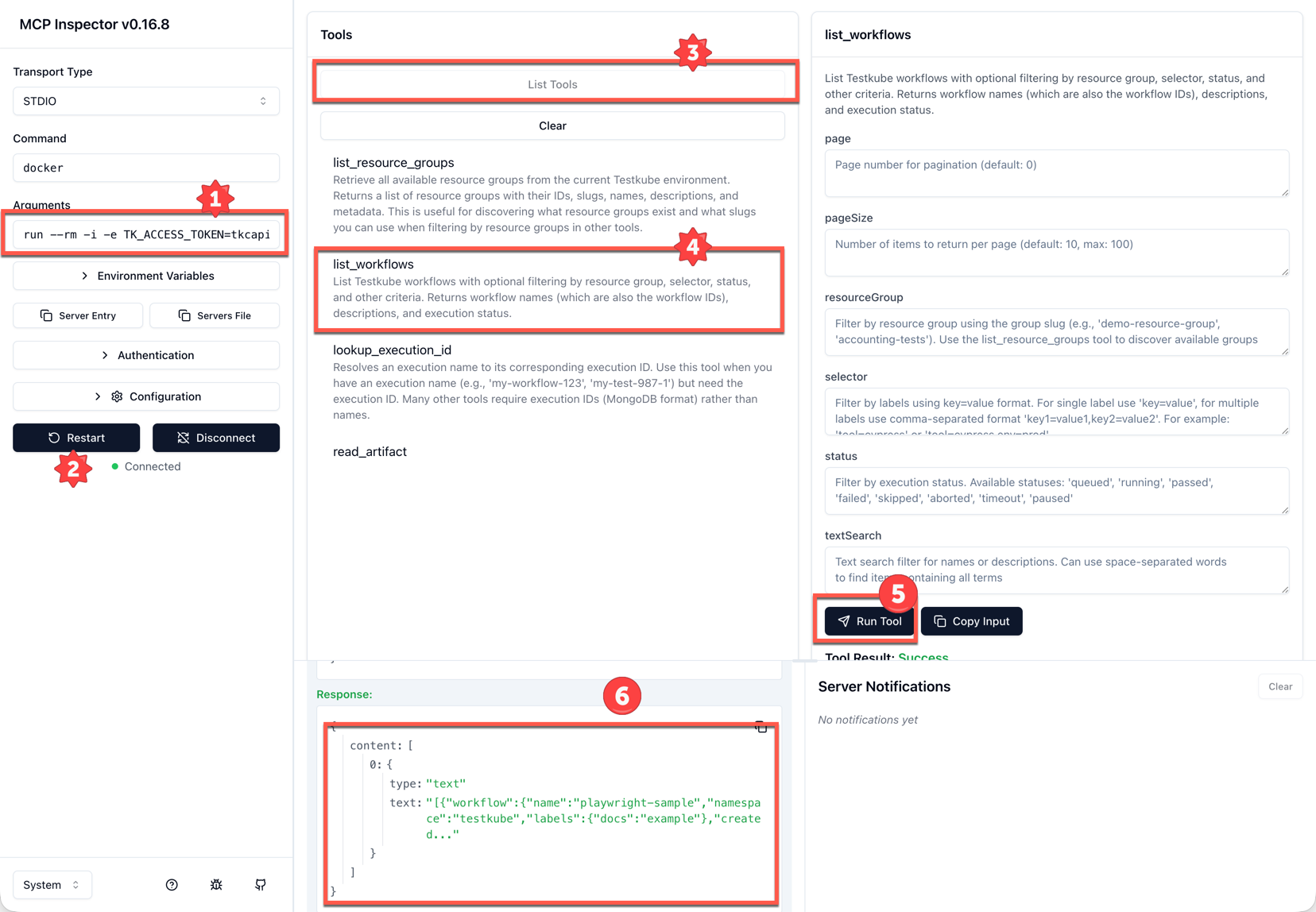
When launching the MCP Inspector as shown above, follow these steps to invoke one of the available tools:
- Make sure the arguments contain the environment variables
TK_ACCESS_TOKEN,TK_ORG_ID, andTK_ENV_ID - Press the "Connect" button
- Select "List Tools" to see the available tools
- Select the tool you want to use, in the below screenshot we use list_workflows
- Select "Run Tool" to the right
- See the response in the bottom left panel.